

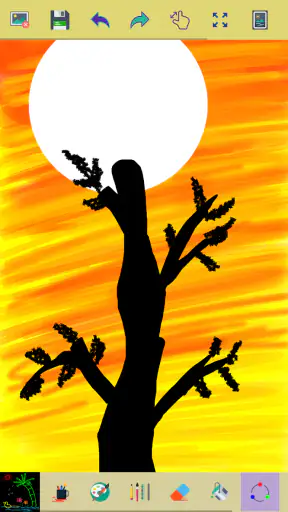
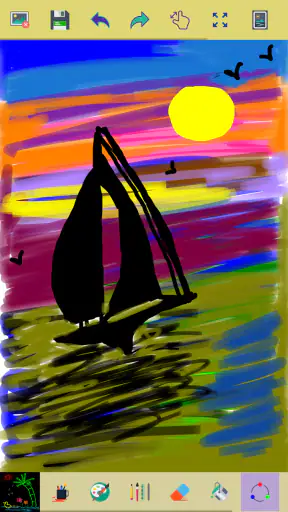
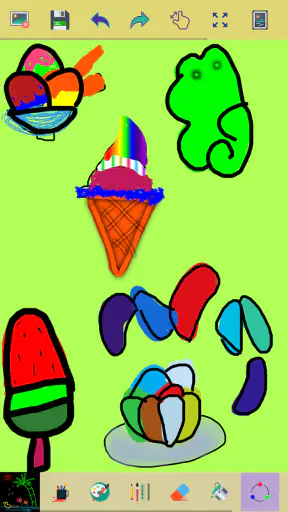
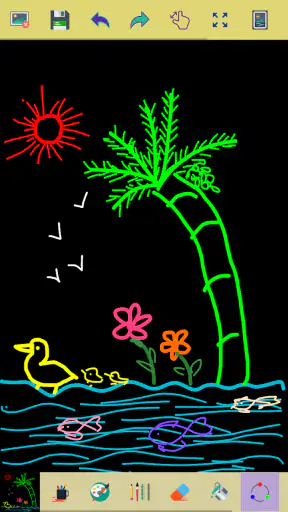
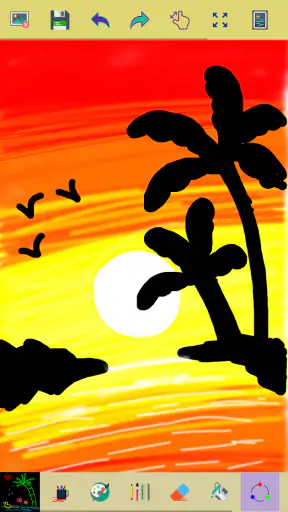
I like simple drawing tools when they respect my time, and Paint from ng-labs is built around exactly that idea. It is a free art and design app for Android that opens the door to quick sketches, rough diagrams, color experiments, and casual doodling without asking me to learn a complicated creative suite first. Its appeal is not a long list of professional tools; it is the direct feeling of touching the screen and seeing a mark appear.
That simplicity also explains both its strength and its limits. I can get started quickly, zoom into an area, choose from multiple colors, and undo a few recent strokes when my hand slips. I would recommend it to someone who wants a lightweight digital canvas for everyday ideas, but I would not present it as a replacement for a full illustration program. The useful question is whether a small, focused paint app matches your workflow.
Getting started without unnecessary friction
Paint is aimed at a broad audience, with an Everyone content rating and support beginning with Android 6.0. The current version is 3.6.2, so the practical first step is simply checking that the phone or tablet is running a compatible Android release. If the app will not install or open, compatibility should be checked before blaming the drawing surface itself.
Once it is available, the learning curve is gentle. The short store description is just “Paint,” and that accurately reflects the uncomplicated purpose. I do not have to navigate a project-management system or sort through a professional workspace before making a mark. That makes it suitable for a child exploring colors, a student sketching a visual note, or an adult who wants to draw something quickly while away from a computer.
The first place some users may get stuck is expecting a complete art studio. A minimal canvas can feel almost too bare if I am coming from a feature-heavy alternative. Before starting a serious drawing, I would decide what the app is being used for: a temporary sketch, a simple finished image, or a detailed illustration. The first two fit its character much better than the third.
It is also worth checking the phone’s available storage and keeping the app updated through the normal Android app process. Those are ordinary setup steps, but they prevent a surprising amount of confusion. If the application installs correctly yet drawing feels wrong, I would next check whether the issue is limited to one screen, one gesture, or the entire device.
What the basic controls are good at
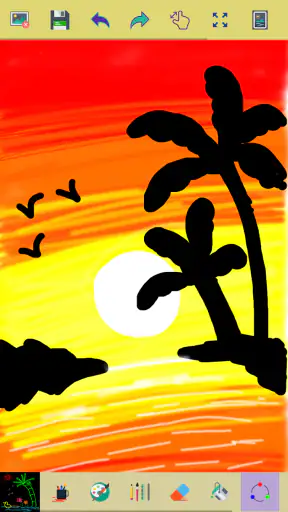
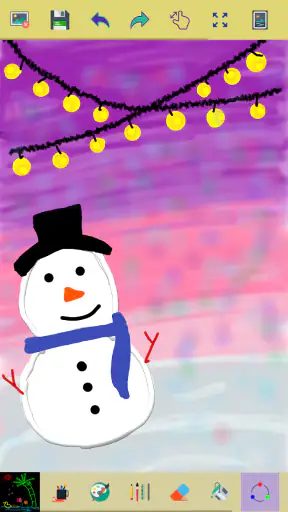
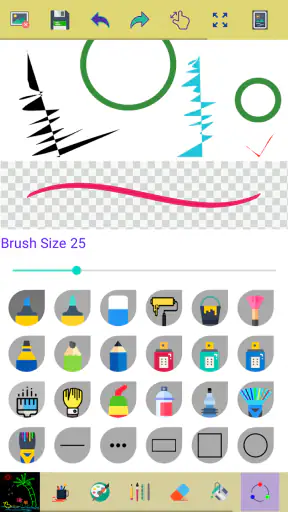
The central experience is touch drawing. Multiple colors make it possible to separate ideas visually, while zooming helps when a line needs more careful placement. I find zoom especially useful for small lettering, narrow gaps, or cleaning the edge of a shape. It is not merely a decorative option: using it deliberately can make a simple canvas feel considerably more manageable on a small phone.
The undo function is helpful, but I treat it as a safety net rather than an unlimited history system. The app is described as undoing a few strokes, so I would avoid making a long sequence of changes before checking the result. If I am experimenting with a complicated mark, I pause after each stage and inspect it. That habit reduces the chance of needing to reverse more work than the undo control can reach.
A practical technique is to zoom in before detail work, draw slowly, and zoom back out to judge the overall balance. At high magnification, a line can look perfectly placed while actually sitting too far from the surrounding shapes. This two-level check is more reliable than trying to complete an entire drawing while zoomed in.
Color choice can also be used as a planning tool. I might use one color for the main outline, another for temporary notes, and a third for emphasis. Even without a complex layer system, that visual separation makes a rough diagram easier to read. I would still avoid treating colors as permanent editable layers; once marks are on the canvas, changing one part selectively may be less convenient than it would be in a professional editor.
A realistic everyday workflow
Imagine I am preparing a small room layout while waiting for an appointment. I can sketch the walls, use a different color for furniture, zoom in to add labels, and undo a misplaced line before showing the result to someone else. That is a realistic situation where the app’s directness is more valuable than a large toolbox. I do not need advanced rendering to communicate a basic idea.
For a study note, I might draw an arrow, circle an important section, and add a few colored marks over a photographed reference displayed nearby. The app works best when I already know what I want to express and need a quick visual surface. It is less comfortable when I am trying to build a polished composition through many revisions.
Another useful workflow is rough planning before moving to a different tool. I can block out the proportions of an icon, map the placement of a poster element, or test whether two colors feel distinct enough. The resulting sketch can guide a later project in a more capable application. In that role, Paint is not competing with a full editor; it is acting as a fast first draft.
For younger users, the limited scope can be an advantage. There are fewer concepts to explain than in a layered illustration app, and the immediate response encourages experimentation. I would still supervise any child using a phone or tablet in general, but the drawing task itself is approachable. The Everyone rating also makes the app easier to consider for shared household use.
Recovering when a drawing goes wrong
The most important recovery habit is to stop quickly after a mistake. If I notice a bad stroke, I use undo immediately instead of continuing and hoping the error will disappear in the larger picture. Because only a few recent strokes can be undone, continuing to draw may push the unwanted mark outside the recoverable range.
If the problem is not a single stroke but a whole section, I would first zoom out and decide whether it truly damages the drawing. At high zoom, small imperfections can seem more serious than they are. Sometimes the better solution is to adapt the design around the mark, especially in a rough sketch. This is one reason I see the app as a fast drawing pad rather than a precision-production environment.
Accidental gestures deserve a calm approach. I would test whether the issue happens consistently with one finger, with a particular area of the screen, or only while zooming. Cleaning the display, removing an overly thick screen protector, and trying the same action in another app can help distinguish a drawing-control problem from a touch-screen problem. These checks are simple, safe, and more useful than repeatedly reinstalling the app.
If Paint closes or becomes unresponsive, I would first reopen it and test a very small mark. Then I would restart the device and confirm that Android has enough free storage and that the app is current. I would avoid clearing app data unless I understand what local work might be removed. A reset can solve some problems, but it should not be the first reaction when an unfinished sketch may matter.
When the app may not be the cause
Drawing apps make hardware weaknesses easy to notice. A delayed line, missed touch, or inconsistent movement may come from the phone’s display, a damaged screen protector, a wet finger, or a device that is busy with other tasks. If the same touch behavior appears in a notes app or browser, Paint is probably not the only thing involved.
Performance can also be affected by the device itself. Older hardware may respond less comfortably when many applications are open, even though the app supports an older Android baseline. Closing unused apps, restarting the phone, and testing a short sketch can separate a temporary system slowdown from a repeatable application issue.
Color or visibility concerns can be misleading too. Screen brightness, display settings, and viewing angle can change how a mark appears. I would check the result in normal lighting before deciding that a chosen color failed. If the drawing looks different after being shared or opened elsewhere, the other application or display may be responsible for that difference.
Storage is another common source of trouble. A device with very little free space can behave unpredictably when saving or updating applications. I would check storage before assuming that every missing or interrupted result is related to the canvas. Keeping important sketches backed up through the phone’s usual safe method is sensible, particularly because a simple drawing app should not be treated as a complete archival system.
How it compares with familiar alternatives
Compared with a basic note-taking app, Paint gives the drawing action more attention. A notes app may be better for combining paragraphs, checklists, and occasional marks, while this app makes sense when the image itself is the point. For a quick diagram or freehand sketch, opening a dedicated canvas can feel cleaner than searching through a document interface.
Compared with a full illustration suite, the trade-off is obvious. Professional alternatives generally offer more control over editing, organization, and refinement, which matters for finished artwork, design work, or repeated revisions. Paint is easier to approach, but that ease comes from keeping the experience narrow. If I need dependable editing of individual elements, extensive correction, or a sophisticated production workflow, I would choose the larger tool.
It also occupies a useful middle ground between paper and advanced software. Paper has natural simplicity but does not provide digital undo or zoom. A professional app provides control but may slow down a five-minute idea. Paint is most convincing when I want the immediacy of paper with a small amount of digital forgiveness.
The audience size suggests that this straightforward approach has broad appeal: the app has passed five million installs and holds an average rating of 4.2 from around eighteen thousand ratings. I see those figures as signs that the concept is easy for many people to understand, not as proof that it will satisfy every artist. A simple tool can be popular precisely because it avoids demanding more commitment than the task requires.
Who should use it, and who should skip it
I would point this app toward beginners, families looking for a basic drawing activity, students making visual notes, and anyone who wants a quick freehand canvas. It is also a sensible companion for brainstorming: make the rough image here, then recreate or refine it elsewhere if the idea proves worthwhile.
I would skip it for professional illustration, detailed comics, complex photo editing, or any project that depends on extensive non-destructive editing. Artists who need a carefully organized workflow may become frustrated by the narrow undo range and the lack of the broader controls found in larger creative applications. The app is not failing in those situations; it is simply being asked to do a different job.
It is free, which removes the usual price barrier for trying it. Still, “free” does not mean every workflow is equally comfortable. The real cost may be time if I attempt a highly detailed piece and later discover that revisions are awkward. Starting with a small test drawing is the best way to learn whether its simplicity feels liberating or restrictive on a particular device.
My practical verdict
After using Paint as a quick digital sketchpad, I see its main value in the first few minutes of an idea. Zoom, multiple colors, and limited undo provide enough support for clear casual drawings without burying the user in controls. The developer, ng-labs, has kept the focus understandable, and that makes the app approachable for people who do not want a course in digital art before drawing a line.
My advice is to set expectations correctly: use it for sketches, diagrams, doodles, and simple visual communication; do not depend on it as a complete professional studio. Check Android compatibility, test touch response, save important work safely, and undo mistakes early. Those small habits address most of the practical friction I would expect from a lightweight drawing tool.
Paint is worth trying when speed and simplicity matter more than deep editing. I would recommend it to a friend who wants a free, friendly canvas for everyday drawing, especially on a compatible Android device. If that friend needs layers, elaborate correction, or production-ready artwork, I would steer them toward a more advanced alternative instead. For everyone else, this focused approach can be exactly what makes a drawing app useful rather than overwhelming.


